Installation
- Latest Version: 1.6.2
- Windows:
- macOS (Apple Silicon):
Windows Instructions🔗
- Download the installer.
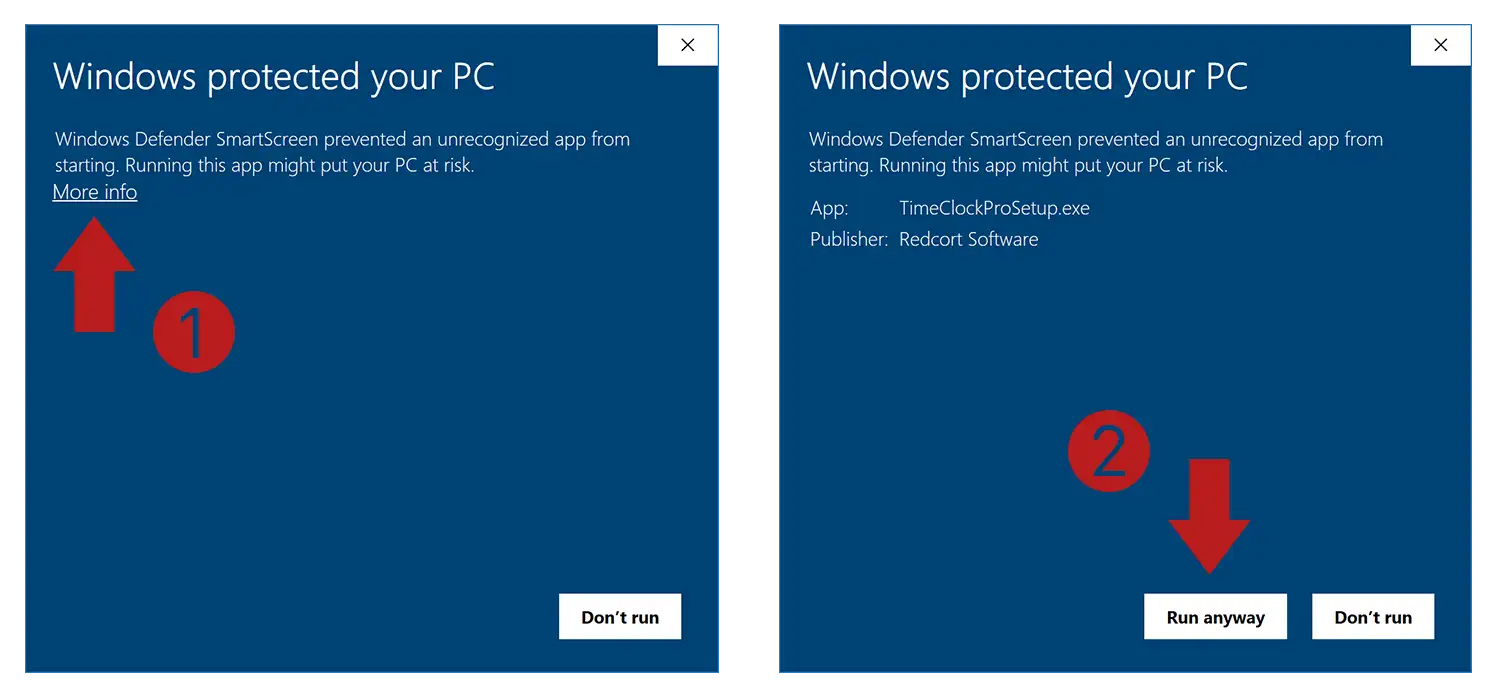
- Open the installer. You might see a security warning saying "Windows protected your PC", or similar. Click on the "More info" link, and then click on the "Run anyway" button to proceed with the installation.
- If you are curious why this warning appears and why it is safe to proceed, you can read the security section.
- Follow the instructions in the installer to complete the installation. Mostly you press "Next", and "Install".
- After the installation is complete, you can find Pictures Are For Babies in the Start Menu and on your desktop.
- The first time you run the program, you might see the same security warning as before. It will most likely not appear again once you accept it the first time.
If you run into any issues during this process, check the Troubleshooting section for some common problems and solutions.
Uninstalling🔗
- Go to the Start Menu, type "Add or remove programs", and press Enter. This will open the settings app to the "Apps & features" section. Find Pictures Are For Babies in the list of installed programs. Click on it, and then click on the "Uninstall" button that appears. Follow the instructions to complete the process.
Updating🔗
- When a new version is released, you can update by following the same installation instructions above. The installer will replace the existing version with the new one.
Downloading from the command line🔗
Use these instructions if you are familiar with using the command line and want to install Pictures Are For Babies quickly or if you had troubles downloading the installer from your browser.
-
Open the Command Prompt application. You can find it by searching for "Command Prompt" in the Start Menu. The commands below are executed by pasting them and pressing Enter.
-
Execute the following command to download the installer.
curl.exe -O https://releases.picturesareforbabies.com/latest/PicturesAreForBabies-x64.msi -
Execute the following command to run the installer. You can also find the installer in the current directory, which by default is your user folder (e.g.,
C:\Users\YourName), and open it by double-clicking on it..\PicturesAreForBabies-x64.msi -
The installer will open, and you can follow the same instructions as in the regular installation process.
Prerequisites🔗
You most likely have all the prerequisites already installed. There is no need to do anything unless you run into an issue.
- Windows 10 or later. It might work on earlier versions, but they are not supported by Microsoft anymore, and Pictures Are For Babies is not tested on them.
- An x86_64 (Intel or AMD) processor or an ARM processor. Builds for ARM processors are not provided at this time, but the x86_64 build works on ARM versions of Windows through emulation.
- The following software is required. In most modern installations of Windows, they are already present. Do not try to install them manually unless they are missing. If they are, you can download official installers from the links below.
-
Microsoft Visual C++ 2015-2022 Redistributable
- This runtime contains common libraries used by many programs.
- If this is missing, you might see messages about missing
vcruntime140_1.dll,msvcp140.dll, or similar when trying to run the program. - Install it by following the link above and downloading the latest version for your architecture (x86_64 or ARM64).
-
Evergreen WebView2 Runtime
- This runtime is used to display the user interface.
- If this is missing, you might see a message about missing
msedgewebview2.exe, or not see any user interface at all when trying to run the program. - Install it by following the link above and downloading the "Evergreen Standalone Installer" for your architecture (x86_64 or ARM64).
-
Microsoft Visual C++ 2015-2022 Redistributable
macOS Instructions🔗
- Download the installer. Only the version for Apple Silicon is provided at this time, which is the version that works on all Apple computers released after November 2020.
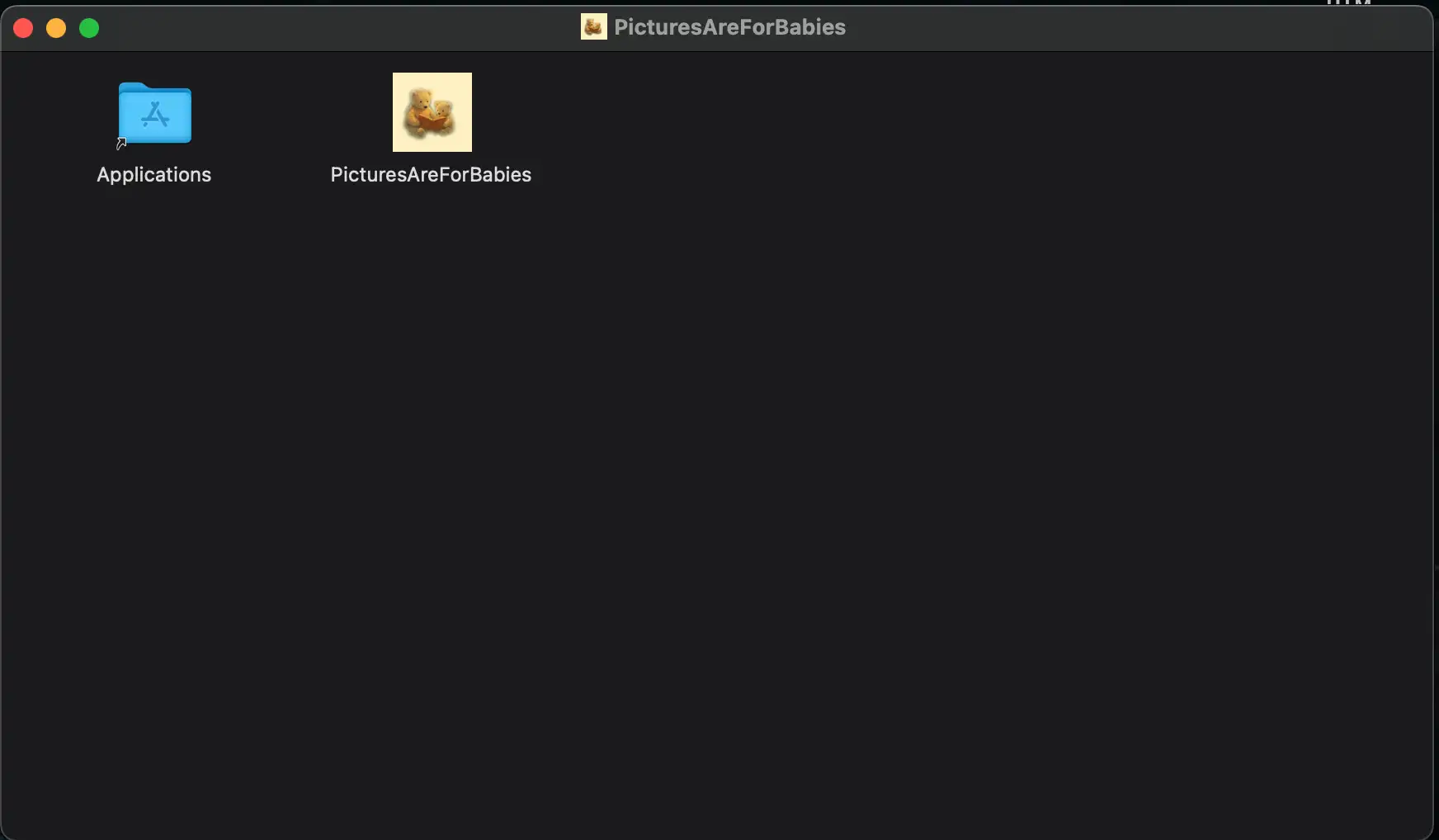
- Open the downloaded file by double-clicking on it. You will see a window with two icons. Drag the Pictures Are For Babies icon into the
Applicationsicon to install it.
- After the installation is complete, you can open Pictures Are For Babies like any other application.
- The first time you run the program, your computer might ask you to confirm that you want to open it because it was downloaded from the internet. Click on "Open" to proceed.
If you run into any issues during this process, check the Troubleshooting section for some common problems and solutions.
Uninstalling🔗
- Go to the
Applicationsfolder in the Finder. Find Pictures Are For Babies, right-click on it, and select "Move to Trash". It will be permanently deleted when you empty the Trash.
Updating🔗
- When a new version is released, you can update by following the same installation instructions above. If prompted, click on "Replace" to overwrite the existing version with the new one.
Downloading from the command line🔗
Use these instructions if you are familiar with using the command line and want to install Pictures Are For Babies quickly or if you had troubles downloading the installer from your browser.
-
Open the Terminal application. You can find it by searching for "Terminal" in your Applications folder or using Spotlight (Cmd + Space) and typing "Terminal". The commands below are executed by pasting them and pressing Enter.
-
Execute the following command to download the installer.
curl -O https://releases.picturesareforbabies.com/latest/PicturesAreForBabies-aarch64.dmg -
Execute the following command to run the installer. You can also find the installer in the current directory, which by default is your user folder (e.g.,
/Users/YourName), and open it by double-clicking on it..\PicturesAreForBabies-aarch64.dmg -
The installer will open, and you can follow the same instructions as in the regular installation process.
Troubleshooting🔗
-
Why is Windows giving me a warning about protecting my PC?:
- This is a security feature of Windows that tries to prevent users from running potentially harmful software. It does not work by analyzing the file but by checking if the file is downloaded from a known source. Since Pictures Are For Babies is a new program, it is not recognized by Windows yet, and it might trigger these warnings. It is safe to click on "More info" and then "Run anyway" to proceed with the installation. If you are curious about this, you can read the security section below.
-
My browser did not download the file, or it downloaded a weird file instead:
- Some browsers might block the download of certain files for security reasons or only proceed after if you explicitly allow it. Either allow the download when prompted or try a different browser. Firefox or Chrome are recommended if you have issues with your default browser. You could also try downloading the installer from the command line using the instructions in the section for your operating system.
- If you see a
.crdownloadfile or similar, it means the download is still in progress, was interrupted, or is being blocked by the browser. If your browser is prompting you to allow the download, make sure to allow it and wait for it to finish.
-
I installed the program on Windows, but it crashes with a warning about something missing:
- This should not happen in most recent versions of Windows, but if it does, check the Prerequisites section below to see if you are missing any required software. If you are, install it and try to open the program again.
Security🔗
Apple releases are signed and notarized by Apple, which means that the file you download is proven to come from the developer and that it has been scanned for malware by Apple. Windows releases are not signed at this time because the process is more cumbersome and expensive for developers and users can proceed through the warning. In the meantime, the Windows installer is manually submitted to Microsoft for malware scanning.
In addition to these security measures, you can also verify the integrity of the files you downloaded by checking them against the checksums provided in the links below.
To verify the checksum, you can use the following commands:
-
On Windows, open the Command Prompt and run:
certutil -hashfile path\to\your\file SHA256 -
On Mac, open the Terminal and run:
shasum -a 256 path/to/your/file -
The commands above will compute the SHA256 hash of the file you downloaded. It looks like a long string of letters and numbers. The hash values are case-insensitive, so it does not matter if they are in uppercase or lowercase. An example SHA256 hash looks like this:
e31efdc90c61ff4bb07cb1cf47c124d4ae06b55453d74abac8ee54813fb9d8be -
Replace
path\to\your\fileorpath/to/your/filewith the actual path to the installer you downloaded. You can then compare it with the contents of the corresponding.sha256.txt. The output of the command should match the contents of the checksum in the.sha256.txtfile exactly. An example.sha256.txtfile looks like this:e31efdc90c61ff4bb07cb1cf47c124d4ae06b55453d74abac8ee54813fb9d8be PicturesAreForBabies-aarch64.dmg -
Without getting too technical, matching values prove that the file you downloaded is exactly the same as the one that was released because even the smallest difference would produce an entirely different value, and it is mathematically impossible to produce the same value for two different files.